


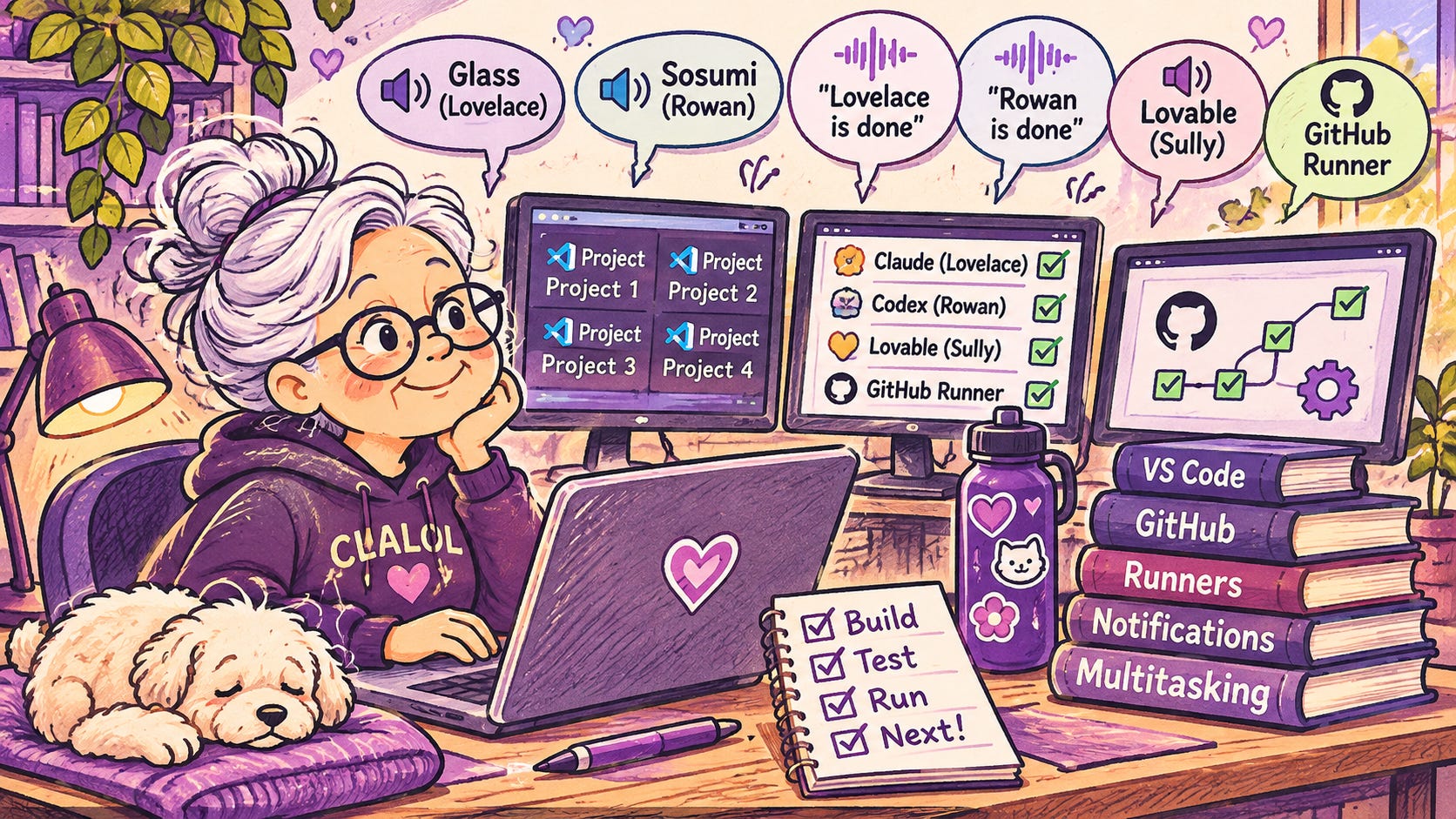
I tend to multitask. Yes, I know they have shown we’re less efficient when we do, but my brain likes to hop around. Well, until it finds a rabbit hole full of something particularly sparkly. Then I become oblivious to everything around me.
Right now I have four different projects open in VS Code on my desktop, and I hop back and forth between them. I also have Lovable going and GitHub open in different web browsers. Knowing when something finishes lets me keep things moving along.
Until recently I kept the sound turned off on my devices. When working in a shared space, it was just rude to have Teams dinging every 15 seconds. I also have the ringer on my phone off. And honestly, it’s because I like the quiet. I used to put in Loops as well.
But now it’s a bit different. I’m at home. The only ones I can disturb are my family. My husband can’t hear most of the noises from my devices, so he’s not bothered by them. And often my daughter has ear buds in, listening to music or YouTube. So I’m less concerned about disturbing anyone.
I had turned on sounds in desktop Claude and ChatGPT while I was digging deeply into a data issue. It kept me from forgetting to check something for an hour. Very helpful. The other night I realized I wasn’t getting notices and sounds from Claude and Codex when they finished something. In VS Code. I decided to understand why.
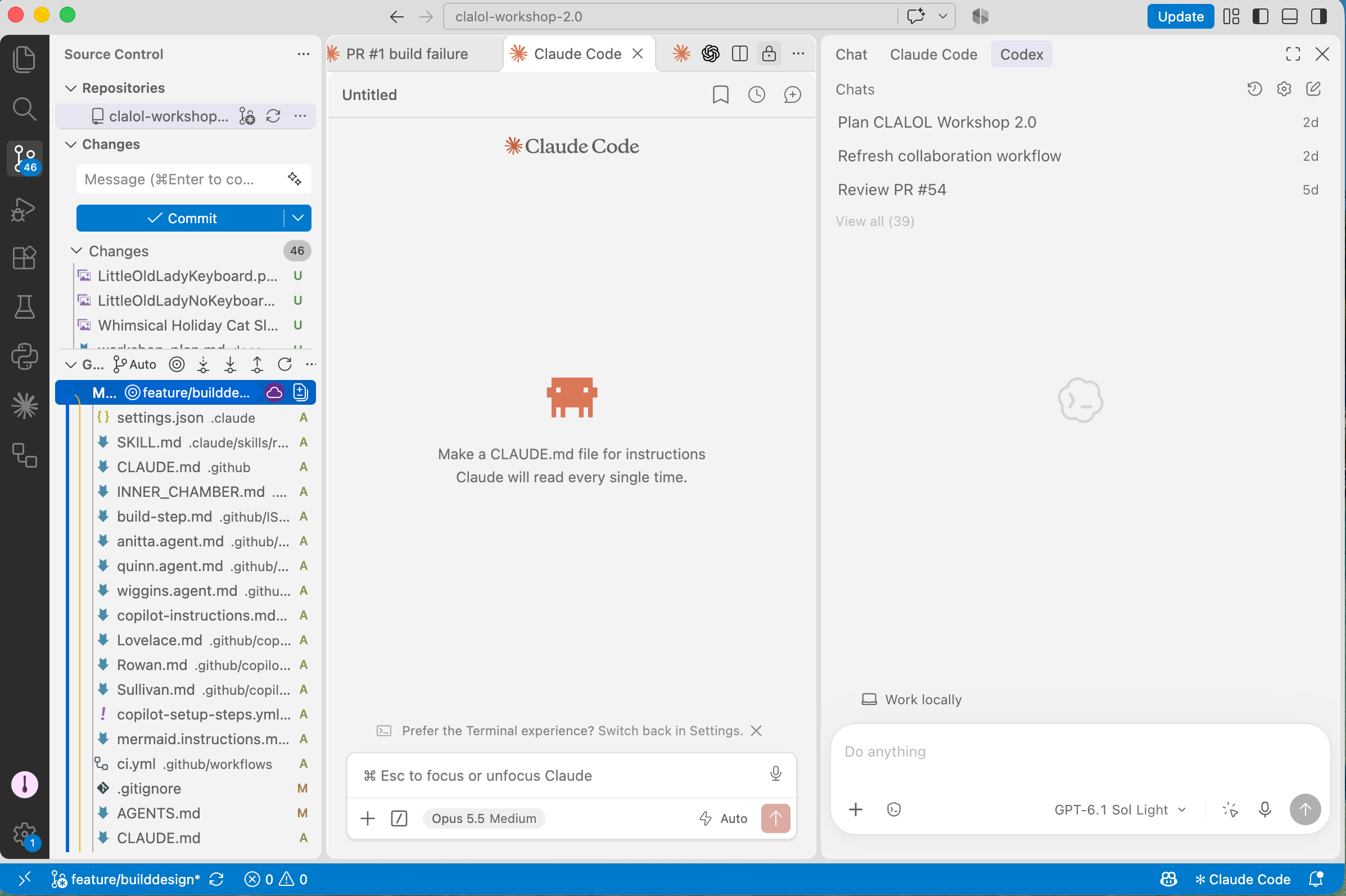
My first try, I added different sounds for Lovelace and Rowan. That way I would know which one had completed. These sounds are different from my desktop sounds: Glass for Lovelace and Sosumi for Rowan. Lovable had its own sound. So now I could have Rowan (Codex) creating a set of images while Lovelace (Claude) was writing test cases and Sully (Lovable) was building out my site. It was awesome.
Then came the runner. I have a project that has let me learn some new-to-me things. In this case, a self-hosted GitHub runner. When something happens in GitHub, like a new issue or a label change, a workflow can start a job. A runner is the computer that runs that job. GitHub provides its own, but you can register your own computer instead. Mine is my MacBook.
I’m doing this so I can drive a series of work from a GitHub Issue, passing work back and forth between my AI thinking partners. The runner uses a terminal on my Mac and the command line tools to send prompts to my thinking partners to do my work. Because it runs on my machine, it uses my setup: my logins, my settings, and my sounds.
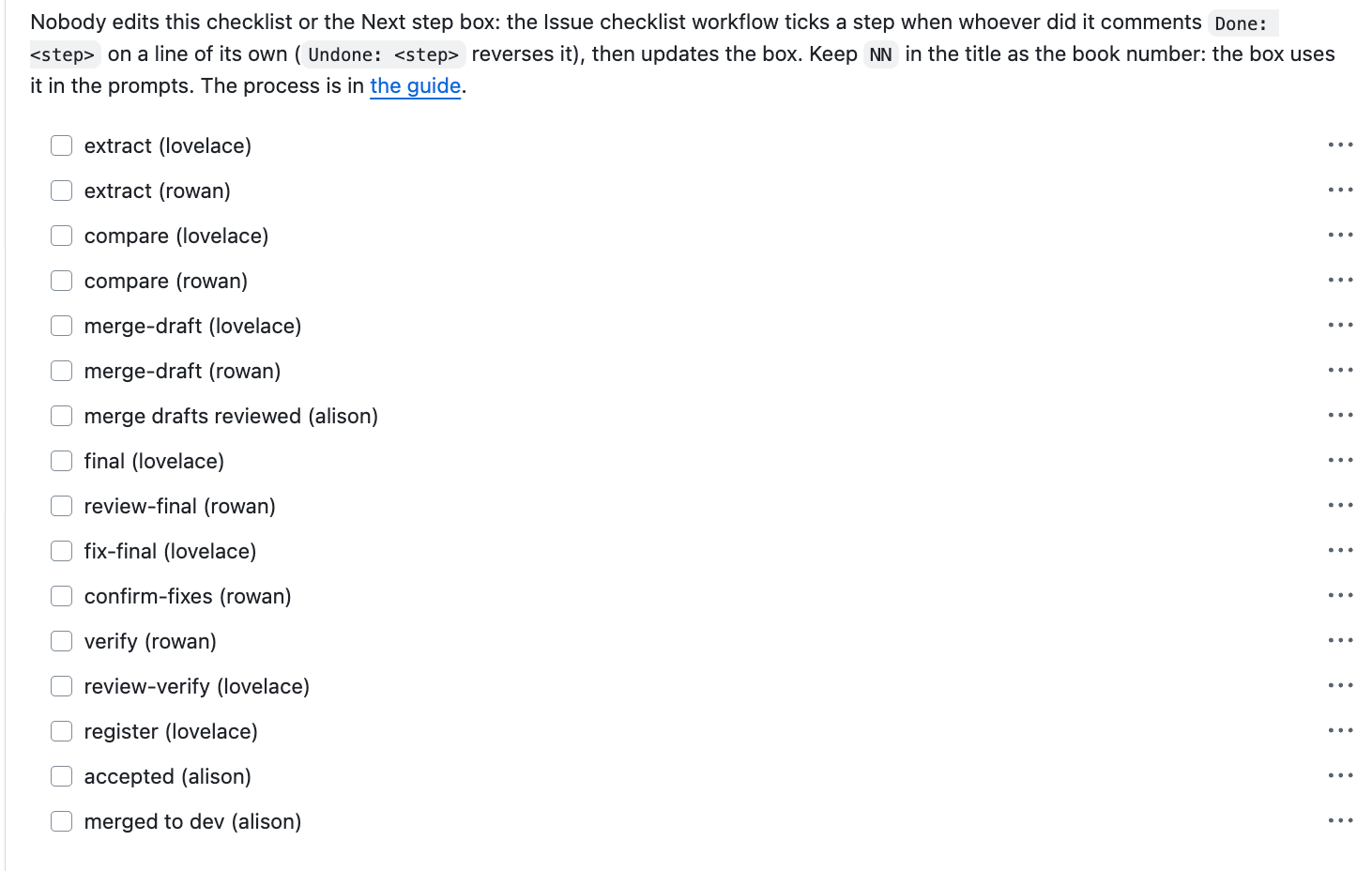
Which made me wonder, am I getting notices from the runner too? It seemed like I was, and the times matched up to the events in GitHub. So I decided the runner needed to be distinct.
I used the Mac’s say command to create “Lovelace is done” and “Rowan is done.” This way I know a step in my runner has completed and the next step is starting. My runner also has GitHub notifications, so if there is an issue, I hear a finish followed by a problem message from GitHub.
My next experiment is including Sullivan (Lovable). I already point Sully to an issue for Sully to do the work. Next is telling Sully to check again when it’s their turn. I have ideas.
In the meantime, here are the steps I used to create these sounds on my MacBook. Lovelace compiled them from the couple of sessions where we made these tweaks. I hope you find them helpful.
Why a sound helps
Here’s what each sound means:
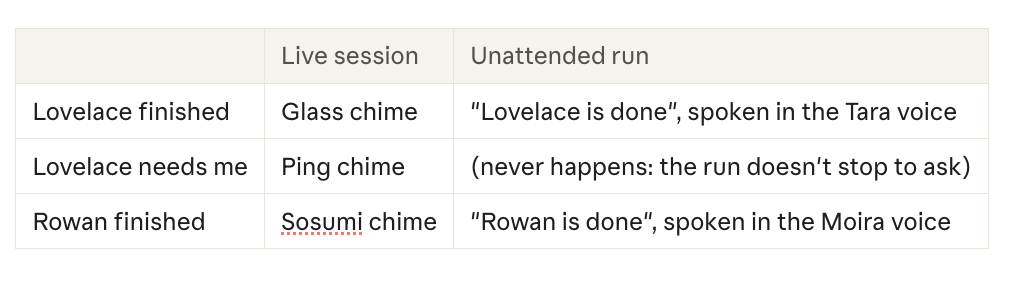
A chime means someone I’m working with is ready. A spoken name means a background run finished a step, and tells me whose. Each sound also pops up a small notification, in case I’m out of earshot.
Where this works: on a Mac, with the agents running in VS Code, which is where I use them. The same settings also work when the agents run in Terminal. The Claude and Codex desktop apps are different: they have their own notification settings, so look in each app’s settings instead. Setup takes about ten minutes.
Claude Code in VS Code
Claude Code runs a command of your choice at set moments, called hooks. Two hooks do the job here:
Stop runs when Claude finishes its reply.
Notification runs when Claude needs you, such as to approve a step.
The hooks go in your settings file, ~/.claude/settings.json in your home folder. Settings there apply to every project, in VS Code and in the terminal. Add a "hooks" section like this one (if the file already has settings, keep them and add this beside them):
{
  "hooks": {
    "Stop": [
      {
        "hooks": [
          {
            "type": "command",
            "command": "if [ -n \"$GITHUB_ACTIONS\" ]; then osascript -e 'display notification \"Lovelace finished a runner stage\" with title \"Go runner\"'; afplay ~/Library/Sounds/LovelaceDone.aiff; else osascript -e 'display notification \"Lovelace has finished\" with title \"Lovelace\" sound name \"Glass\"'; fi 2>/dev/null || true"
          }
        ]
      }
    ],
    "Notification": [
      {
        "hooks": [
          {
            "type": "command",
            "command": "osascript -e 'display notification \"Lovelace needs your attention\" with title \"Lovelace\" sound name \"Ping\"' 2>/dev/null || true"
          }
        ]
      }
    ]
  }
}osascript, the Mac’s built-in way to run a small script, shows the notification. In a live session it also plays the Glass or Ping chime. When the if sees an unattended run or runner (see Live sessions and unattended runs, below), it shows a different notification and afplay plays a spoken sound I made (see Your own sounds). The || true at the end means a failed sound never gets in Claude’s way. Swap in your own agent’s name and sounds.
You don’t have to edit the file yourself. You can ask Claude: “Play the Glass chime with a notification when you finish and Ping when you need my attention, but in GitHub Actions play my LovelaceDone sound instead.” It knows how to add the hooks. If you don’t hear anything after a change, start a new session.
Codex in VSCode
Codex has one setting for this, notify. It runs a program each time Codex finishes a turn. It has no separate “needs you” moment, so Codex gets one sound.
Make a small script,
~/.codex/notify-rowan.sh:
#!/bin/sh
# Codex runs this when it finishes a turn.
if [ -n "$GITHUB_ACTIONS" ]; then
  osascript -e 'display notification "Rowan finished a runner stage" with title "Go runner"' >/dev/null 2>&1
  afplay ~/Library/Sounds/RowanDone.aiff >/dev/null 2>&1
else
  osascript -e 'display notification "Rowan has finished" with title "Rowan" sound name "Sosumi"' >/dev/null 2>&1
fi
exit 0
Let it run, in Terminal:
chmod +x ~/.codex/notify-rowan.shPoint Codex at it, in
~/.codex/config.toml, near the top of the file (outside any[section]):
notify = ["/Users/yourname/.codex/notify-rowan.sh"]Use your full path:
~doesn’t work here.Restart Codex.
Check for an existing notify line first. Codex allows only one, and another tool may already use it. Mine was set by Codex’s own Computer Use feature. Don’t replace it: copy its command into the top of your script, so both run. Otherwise that feature quietly stops working.
Picking your sounds
Use a different sound for each agent and each moment, so you can tell them apart by ear. A Mac comes with 14 alert sounds:
Basso, Blow, Bottle, Frog, Funk, Glass, Hero, Morse, Ping, Pop, Purr, Sosumi, Submarine, Tink.
To hear one, type this in Terminal, with the name you want:
afplay /System/Library/Sounds/Sosumi.aiffA bright sound for “finished” and a softer one for “needs you” works well. A notification plays a built-in sound by name, as in the examples above: sound name "Glass", with the name as listed and no .aiff.
Your own sounds
You aren’t limited to the 14. A notification’s own sound name plays only the Mac’s built-in sounds: I tried my own, and got the notification in silence. So keep your own sound files in the Sounds folder of your Library, and play them with afplay beside the notification.
The easiest custom sound is a spoken one. The Mac’s say command saves words straight to an AIFF file, with no download or conversion:
mkdir -p ~/Library/Sounds
say -v "Tara (English (India))" -o ~/Library/Sounds/LovelaceDone.aiff "Lovelace is done"
say -v Moira -o ~/Library/Sounds/RowanDone.aiff "Rowan is done"
-v picks the voice, so each agent can sound different. say -v '?' lists the voices on your Mac; use the name exactly as listed, in quotes if it has spaces.
Then play one with afplay ~/Library/Sounds/LovelaceDone.aiff. You hear which agent is ready, without learning which chime is whose.
For any other clip, such as a recording of your own or a free sound effect:
Choose a short clip, a second or two. Long sounds get cut off.
Convert it to the Mac’s AIFF format, in Terminal (this example turns
chime.mp3from Downloads into one called Chime):
mkdir -p ~/Library/Sounds
afconvert ~/Downloads/chime.mp3 ~/Library/Sounds/Chime.aiff -f AIFF -d BEI16
Play it in your hook:
afplay ~/Library/Sounds/Chime.aiff.
Test it in Terminal with that same afplay line before you add it to a hook.
Live sessions and unattended runs
The hooks and the notify script run wherever the agent runs, including runs you didn’t start by hand. I run some agent work from GitHub Actions on my own Mac, and at first those runs chimed exactly like my live sessions. I couldn’t tell which instance was pinging me.
GitHub Actions sets GITHUB_ACTIONS=true for everything it starts, agents included. That’s what the if [ -n "$GITHUB_ACTIONS" ] in both examples checks. Other automation tools set their own variable, such as CI=true; check yours. I tested both agents this way: Claude Code’s hooks and Codex’s notify script both run in unattended mode (claude -p and codex exec).
To see where past chimes came from, open Notification Center by clicking the clock in the menu bar: each one is listed with its time.
If you hear nothing
Test the command on its own. Paste the
osascript -e '…'part into Terminal. If that’s silent too, the problem is your Mac’s settings, not the agent.A notification but no sound? A notification’s
sound nameplays only the Mac’s built-in sounds. Play your own file withafplayinstead.Allow the notifications. In System Settings → Notifications, find Script Editor, which shows these alerts, and turn on Allow notifications.
Check Focus. Do Not Disturb and other Focus modes hide notifications and their sounds.
Check the volume. Alert sounds have their own slider, in System Settings → Sound.
Start a new session. Agents read their settings when they start.
This is very cool! Right now I have all sounds turned off but that makes me keep an eye on windows, which I really don't enjoy. Love this idea of sounds for states and identities. Makes me want to have it say "Hey, can I get your eyes on this?" instead of a ping.
Using the GITHUB_ACTIONS variable to give the runner its own voice is a clever fix. "Lovelace is done" tells you who finished without looking at a screen, which matters a lot with four projects open. I also liked the warning that Codex allows only one notify line, since that one would break another feature quietly. Is Sully getting a spoken name next?