

Over the past 10 days or so, I have been obsessed with planning and then executing for #SheBuilds. It was great to have something push me to build end to end. To really rev up the old brain cells.
I have a lot I want to talk about over the next week or so. So where to start?
Accessibility.
The data person problem
I am a data person. Most of my websites look like they were created by a data person. Rows and columns. Black and white. Or, in the case of my personal site, tan and brown.
I don’t consider myself a creative. I’ve always partnered with folks who understand UI and graphics. And they tended to handle any accessibility issues.
It’s been 20 years since I’ve done much web dev. I focused on the back end, serving the data correctly and quickly. Even back when I did front end work, a graphic designer was always in the room.
With AI, I’ve been able to bring a world of art into the apps I’m building. Which means I also need to think about how what I’m building will actually be used, and by whom.
What I learned during the build
During SheBuilds, Sabrina S shared a simple prompt:
Act as a senior product designer and accessibility specialist. Review my app and rate it from 1 to 10 on:
1. UI (visual hierarchy, consistency, spacing, typography, color)
2. UX (navigation, clarity of flows, feedback on actions, empty and error states)
3. Accessibility (color contrast, readable font sizes, keyboard navigation, alt text, screen reader support)
For each area, list the top issues you found, explain why they matter, and suggest a concrete fix. Then give me a prioritized next-steps plan, starting with the quick wins. Don’t change any code yet.
That prompt is going into my seed repo. Yes, I have a seed repo with prompts I use to start every new project. I improve it and add to it as I go.
I also learned I need to add a few rules to my project descriptions. Always include alt text on images, for one.
And that cool rotating text on my landing page? Awful for screen readers. Depending on how it’s built, a screen reader either announces every change, over and over, or reads a half-finished word and moves on. Moving text can also be rough for people sensitive to motion. If text moves on its own, people need a way to pause it.
The tools
At Microsoft we used Accessibility Insights as part of a build. It has a nice browser extension you can use to review your site.
alttext.ai will tell you every place you missed alt text. You can pay for the service to fix them. I think I’ll handle that myself, but the scan was handy.
accessibilitychecker.org gives you a full report. Here are my results:
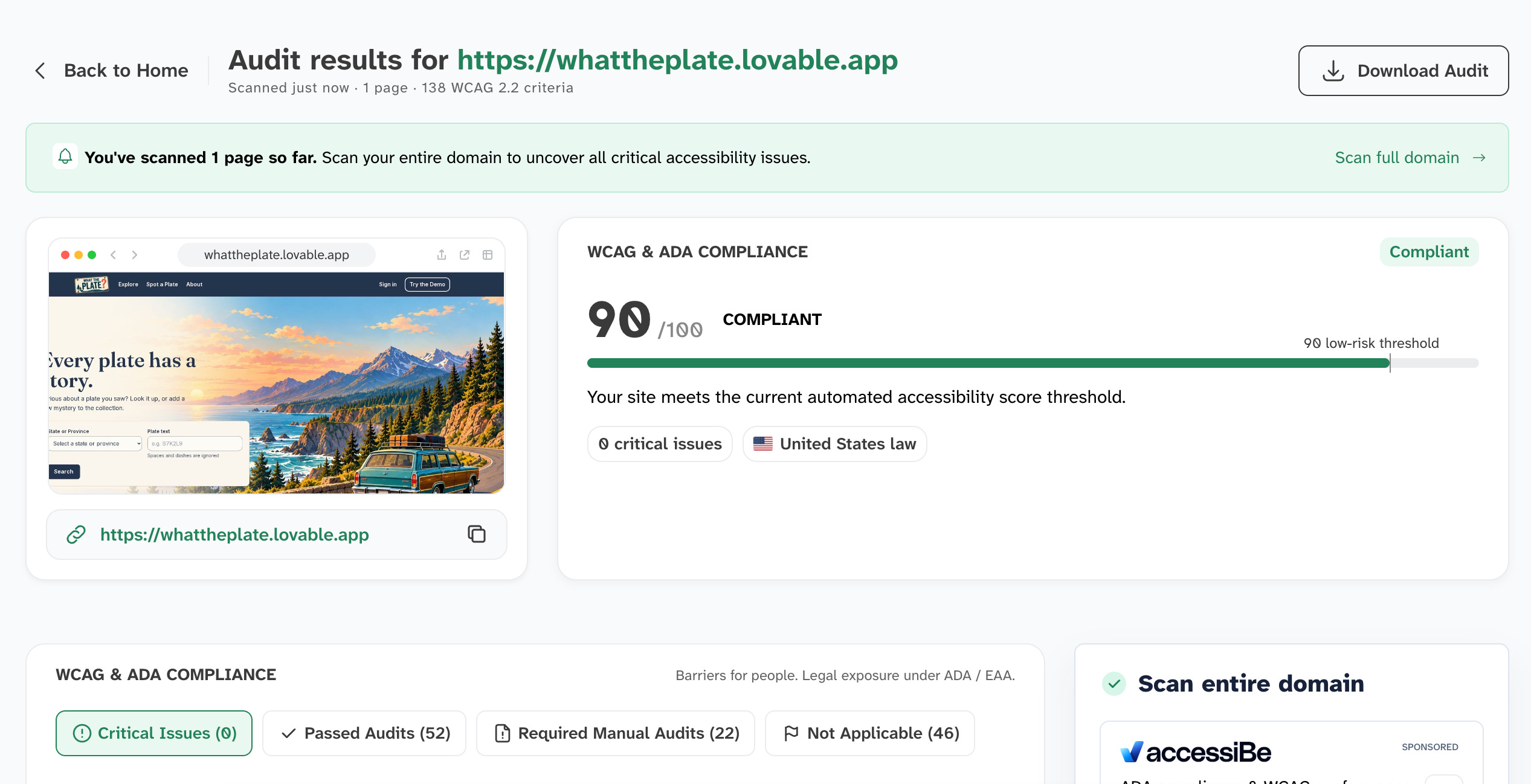
One caveat. Automated scanners only catch part of the problem. They can’t tell you whether your site makes sense when you can’t see it, or whether you can get around it without a mouse. So after the scan, unplug your mouse and try tabbing through your site. Then turn on a screen reader (Narrator on Windows, VoiceOver on Mac) and listen to your landing page for a couple of minutes. You’ll learn more in five minutes than from any report.
What happens next
The SheBuilds version stays as submitted. My fork is where I keep building, and accessibility is the next thing I do there. No new features. Fix what’s already there.
Honestly, I left accessibility to the end. By the time I looked at it, I was too tired to dig in, and I’d hit the point in a build where you don’t want to touch anything for fear of breaking something.
So it’s moving to the front. Here’s what’s going into my seed repo:
Sabrina’s accessibility prompt, run at the start of every project
Alt text on every image (decorative images get an empty alt so screen readers skip them)
No auto-moving text unless it can be paused
An accessibility scan before every merge, right next to test coverage and telemetry
A keyboard-only pass and a quick screen reader listen before calling anything done
Same place I keep everything else that matters from the first commit.
Love the prompt, thanks for sharing! I have accessibility scans built-in, but I still run manual and other automated tests.